


Regular Wednesday.
Last updated: July 2026. Salesforce Hosted MCP Servers are now generally available for Enterprise Edition orgs and above. This guide now uses Salesforce’s first-party hosted path instead of the older community-server, password, and local Node.js setup.
You’re running a busy customer service center. Your team is handling support tickets in Salesforce, logging every call, message, and detail. Meanwhile, your AI assistant is trying to help (think answering questions, suggesting actions), but it can’t pull the latest stock levels or order statuses from your inventory system.
Sound familiar? This kind of disconnect slows everything down.
Customers wait.
Agents scramble.
And your AI? It’s flying blind.
That’s where MCP (or Model Context Protocol) comes in.
Think of it like USB-C, but for AI. Developed by Anthropic in late 2024, MCP is already supported by platforms like OpenAI, Google, and Microsoft.
And now, it’s making waves in Salesforce.
With MCP Salesforce integration, your AI agents can finally talk to your real-time data. That means:
- Instant access to the most up-to-date customer records
- Smarter, more personalized responses
- Automated workflows that actually reflect what’s going on in your business, especially for b2b saas lead generation.
No more guessing. No more outdated info.
Just intelligent, connected AI = right inside Salesforce.
It’s like giving your AI X-ray vision into your CRM.
Sooo, in the next sections, you’ll learn exactly how to set up MCP in your Salesforce environment, step by step. We’ll walk through:
- Connecting Salesforce to MCP with the right permissions and endpoints
- Configuring AI agents to use that data securely and efficiently
- Best practices to keep everything fast, reliable, and compliant
We don’t want to take up too much of your time…let’s get started + get clear on what MCP actually is and why it matters for your Salesforce setup.
What is MCP?
Imagine you’re trying to plug in a new device to your laptop. Without a universal port like USB-C, you’d need a different adapter for each device. That’s exactly how AI integrations used to feel…messy, slow, and full of custom code.
But here’s MCP, and instead of writing one-off connectors every time you want your AI assistant to talk to a CRM, knowledge base, or dev tool, it gives you a standardized way to plug in and go.
Basically, it fixes one big problem: AI assistants had no simple way to connect with the places where your data actually lives (think Salesforce, Notion, GitHub, any MCP tools…you name it).
MCP gives you:
- Standardization → one protocol for all your AI integrations. No more one-off code for each system.
- Flexibility → works across multiple programming languages and platforms, so you can use it in whatever stack you already have.
- Real-time access → your AI assistant sees the latest data; no matter if it’s a customer record, a support ticket, or a live sales report.
- Security → two-way encrypted connections keep your data private and protected.
It’s practical, it’s powerful, and it saves hours (if not weeks) of integration work.
Why does the MCP Salesforce integration matter for users? Here’s where it gets exciting.
If you use Salesforce and want to integrate it with an AI assistant (like Claude or another model), MCP makes that seamless.
Your AI now can:
- Customer support → AI assistants can instantly review customer history, case notes, and prior interactions. That means fewer escalations and faster resolutions.
- Sales automation → your AI can recommend next steps, remind reps of stalled deals, or even draft follow-up messages based on real-time data (by using n8n MCP, for instance).
- Marketing campaigns → Targeted content becomes easier. The AI can personalize messaging by analyzing customer preferences and behaviors stored in Salesforce.
- Data management → Syncing data between your b2b contact database and Salesforce becomes seamless. No more copy-pasting or cleaning up messy spreadsheets. Less human error, more consistency.
That means fewer tickets escalated, faster responses, and a smoother experience for both your team and your customers.
And, speaking about sales, we need your attention for a moment…
Your AI assistant just leveled up
Imagine asking, “Find SaaS decision-makers who just switched jobs” and getting a lead list in seconds. That’s MCP, and we’re ready to show you how it works.
Now that you know what MCP does (and joined up to our waitlist), let’s make sure you’ve got everything ready to set up the integration, so no surprises later.
What are the prerequisites?
Short answer: for the first-party 2026 route, you need a Salesforce Enterprise Edition org or above, a Salesforce administrator, an MCP-compatible client, and permission to create an External Client App. You do not need to clone a community repository or run your own Node server.
1. Confirm Hosted MCP is available
Salesforce says its standard Hosted MCP Servers are generally available for Enterprise Edition orgs and above. In Setup, search for MCP Servers. If the page or standard servers are missing, check your edition, release status, and admin permissions before changing anything else.
2. Use a dedicated Salesforce user and least privilege
The person authenticating the MCP client needs access to the records and actions the selected server exposes. Salesforce still enforces org, object, field, and record-level permissions, so start with a dedicated user or permission set and the read-only server where possible.
3. Choose the client and callback URL
- Claude web or Desktop connector: use
https://claude.ai/api/mcp/auth_callback. - Claude Code local OAuth flow: Salesforce’s current guide uses
http://localhost:38000/callback. - Another MCP client: use the exact redirect URI documented by that client. Redirect URIs must match; do not guess.
4. Decide what the assistant may do
Salesforce provides separate hosted servers and tool sets, including SObject reads, broader SObject operations, Data 360, Tableau, and API Catalog capabilities. Begin with the smallest server that satisfies the job. A read-only pilot is safer than granting create, update, or delete access on day one.
How does the integration architecture look?
Think of the integration as a smooth, behind-the-scenes relay race. Data moves from your AI assistant to Salesforce and back again in seconds.
This setup doesn’t just connect tools. It creates a smart, secure, and real-time system where your AI assistant can pull live data, take action, and deliver results without manual effort.
The core building blocks
The architecture is made up is is your of three main components. Each one plays a key role in how your AI assistant interacts with Salesforce.
- The Host → the AI assistant = no matter if it’s a chatbot, voice agent, or virtual helper in your app. It’s the front line, taking user input and starting the process.
- MCP Client → think of this as the translator. It lives inside your host and turns natural-language input into structured requests. It knows how to talk to the server and understands how to handle the responses.
- MCP Server → this is the powerhouse that connects directly to Salesforce. It fetches the data the assistant needs (like contact info, deal status, or case history) and sends it back in a clean, structured way.
The full data flow looks like this in all MCP tools:
- The User starts something → maybe they click a button or submit a form.
- The Host system receives the request → this could be a web app or internal system.
- The Host sends the request to the MCP Client → think of the MCP Client as the messenger.
- MCP Client talks to the MCP Server → now the message is passed on to the server side of the integration tool (MCP).
- MCP Server connects to Salesforce → this is where the real action happens = data is pulled from or pushed to Salesforce.
- Salesforce responds → it sends data or confirmation back.
- Response flows back the same way → from Salesforce → MCP Server → MCP Client → Host.
- The User sees the result → the original action is completed, and the user gets a response or updated data.
Or, the simplest way possible to describe it: User → Host → MCP Client → MCP Server → Salesforce → MCP Server → MCP Client → Host → User
So when a user says, “What’s the status of our deal with Reply.io?”, the AI quickly pulls real-time info straight from Salesforce, formats it, and responds—all in seconds. And if you want the same for your leadgen…
Built by sales pros, for sales pros
We made this for the reps who hate wasting time. MCP in Generect cuts the noise and delivers contacts that convert. Join the waitlist to know more.
Let’s get back to business…you’ve got the overview so far. Now let’s walk through the setup, step by step, so you can get it working without the guesswork.
How to set up Salesforce MCP integration in 2026
The current shortest path is: activate a Salesforce-managed MCP server, create an External Client App for OAuth, add the server URL to your MCP client, authenticate, and test a read-only request. Salesforce says a standard setup can take less than 30 minutes.
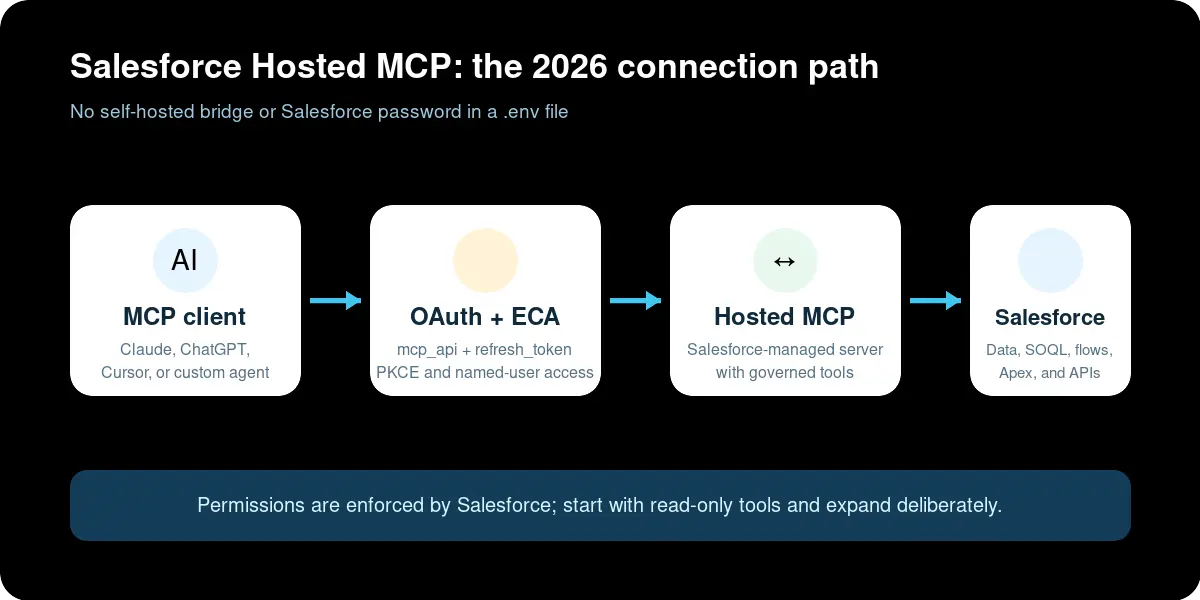
Step 1: Activate a Salesforce Hosted MCP Server
- Open Salesforce Setup and search for MCP Servers.
- Open the Salesforce Servers tab.
- Select the server you need. For a low-risk pilot, choose a read-only SObject server rather than the broader write-capable option.
- Click Activate.
- Copy the server’s Server URL and its API name. Production and sandbox URLs differ, so copy the value from the org you are configuring.
Review the server’s Tools tab before connecting a client. This is the actual capability contract: it shows what the server can expose in your org. Do not infer write access from the server name alone.
Step 2: Create the External Client App
- In Setup, search for External Client App Manager, then choose New External Client App.
- Enter an app name, API name, and contact email.
- Expand API (Enable OAuth Settings) and enable OAuth.
- Enter the exact callback URL for your client.
- Add only these two OAuth scopes for the hosted server flow:
mcp_api(Access Salesforce Hosted MCP Servers) andrefresh_token, offline_access(Perform requests at any time). - Require PKCE and enable JWT-based access tokens for named users. Follow the current Salesforce client guide for the two client-secret checkboxes because settings can differ by flow.
- Create the app, then retrieve and securely store the Consumer Key and Consumer Secret. Never paste them into a public chat, repository, or article screenshot.
Step 3: Add the hosted server to your MCP client
In Claude, open Customize → Connectors, choose Add custom connector, and enter the Salesforce Server URL. Under the advanced OAuth settings, enter the External Client App credentials required by the client. For Claude Code, use Salesforce’s current official Claude connection guide rather than copying an old CLI command from a third-party post.
Authenticate in the Salesforce login window with the intended named user, review the requested access, and approve it. Back in the client, confirm that the server is connected and that its tools appear.
Step 4: Test read access before enabling actions
Start with a narrow request such as: “List five Accounts I can access and return only Id and Name.” Confirm that the result respects the authenticating user’s Salesforce permissions. Then test an expected denial: ask for an object or field the user cannot access. A secure setup should fail closed rather than silently broadening access.
Step 5: Move from pilot to production
- Keep read and write use cases in separate permission sets or servers where practical.
- Require confirmation for high-impact tools such as record updates, deletes, or automation triggers.
- Monitor Salesforce login history, OAuth usage, API consumption, and tool failures.
- Test in a sandbox first, then repeat the connection with the production server URL.
- Document the user, server, tools, permission set, owner, and revocation procedure.
This first-party architecture replaces the older pattern in which teams cloned tsmztech/mcp-server-salesforce, stored Salesforce usernames, passwords, and security tokens in a local .env file, and connected to localhost:3000. That community route can still be useful for custom experiments, but it is no longer the default recommendation for a standard Salesforce-to-Claude connection.
What are some best practices?
Once your MCP in Salesforce integration is up and running, the next step is keeping it solid, secure, and scalable. You’ve done the hard work. Now let’s make sure it stays smooth as you grow.
Here are the best practices you’ll want to follow to avoid issues, improve performance, and keep your data safe:
| Best practices | Real actions | What to do |
| Keep it secure and compliant | Use OAuth 2.0 for authentication | Always connect your MCP server to Salesforce using OAuth. This gives you token-based access, with built-in security and expiration handling. |
| Encrypt all data in transit | Make sure everything (client to server, server to Salesforce) goes through HTTPS. No exceptions. This prevents anyone from snooping or tampering with your data. | |
| Apply Role-Based Access Controls (RBAC) | Within Salesforce, define who can access or update data. Don’t give blanket access. Keep permissions lean and tied to real roles. | |
| Review your security settings regularly | Set a reminder to audit your setup (maybe quarterly or bi-annually). Check who has access, review token scopes, and make sure no unused apps are hanging around. | |
| Optimize for performance and scalability | Keep an eye on API usage | Salesforce has limits. Monitor your daily API calls so you don’t accidentally hit the ceiling. MCP makes multiple calls under the hood, so plan accordingly. |
| Use caching where it makes sense | If your Salesforce MCP AI app asks for data that doesn’t change often (like product names or region lists), cache the response. This cuts down on repeat API calls and speeds up response times. | |
| Leverage bulk APIs for large data | Need to process hundreds or thousands of records? Use Salesforce’s Bulk API instead of looping through one record at a time. It’s faster and more efficient. | |
| Run load tests periodically | Your Salesforce MCP server should be ready for spikes, like marketing campaigns or busy sales quarters. Test it with simulated traffic and adjust as needed. | |
| Avoid common pitfalls | Don’t skip data mapping | Make sure every field in Salesforce lines up correctly with what your MCP client sends and expects. Mismatched fields or invalid contacts lead to sync errors. Use an email finder tool to clean data before mapping. |
| Keep workflows simple | Avoid overly complex logic flows in your integration. Keep things modular and easy to follow. If something breaks, simpler setups are much easier to fix. | |
| Build in error handling from day one | Don’t wait until something fails to figure out what went wrong. Add smart error messages and fallback behavior, like retries or user prompts, so things fail gracefully. | |
| Document everything | Keep a living document that outlines how your integration works, what’s connected, and what each part does. This makes it easier to troubleshoot and helps new team members get up to speed quickly. |
Even solid setups hit snags. If something breaks or stalls, here’s how to fix it fast without pulling your hair out. But, before we dive deep…
Turn your CRM into a lead magnet
Stop chasing cold leads. Generect’s MCP turns your AI into a full-time prospector → finding warm, ready-to-talk buyers right inside your CRM. Join the waitlist to know more.
As promised, let’s talk about troubleshooting.
How to troubleshoot common issues
The MCP server does not appear in Setup
Confirm the org is on Enterprise Edition or above, that the feature is available in the org’s current release, and that you are using a Salesforce administrator account. Search for MCP Servers rather than looking for the old Connected App flow.
OAuth returns redirect_uri_mismatch
The callback URL in the External Client App must exactly match the client flow, including scheme, host, port, path, and trailing slash behavior. Claude web/Desktop and Claude Code use different callback URLs.
Authentication succeeds but no tools appear
Confirm the hosted server is activated, the client points to the copied Server URL for the correct org, the ECA includes mcp_api, and the authenticating user is allowed to use the server. Then reconnect so the client refreshes tool discovery.
A tool appears but the query is denied
That usually indicates Salesforce permission enforcement is working. Check the named user’s org, object, field, and record access. Grant only the permission needed for the approved use case; do not solve a narrow denial by assigning broad administrator access.
The client connects to the wrong org
Production and sandbox server URLs differ. Remove the connector, copy the URL from the intended org’s MCP Servers page, and authenticate with that org’s user. Name connectors clearly, such as “Salesforce sandbox — read only.”
Tokens or sessions expire unexpectedly
Verify that the ECA includes refresh_token, offline_access, review the org’s session policies, and reconnect. Do not work around expiration by storing a Salesforce password or security token in an MCP configuration file.
Where to get help
- Salesforce Hosted MCP Servers GA announcement — the first-party availability, architecture, and shortest setup path.
- Connect Claude with Salesforce Hosted MCP Servers — current callback URLs, OAuth settings, and client-specific steps.
- Salesforce Help: connect an MCP client — admin guidance and security considerations.
- Model Context Protocol documentation — protocol concepts, transports, clients, and server behavior.
Frequently Asked Questions
Yes. Salesforce Hosted MCP Servers are generally available for Enterprise Edition orgs and above. Salesforce hosts the endpoint and enforces authentication, permissions, and governance.
Not for the standard first-party setup. Activate a Salesforce Hosted MCP Server and connect your client through OAuth. A community server is now an optional custom path, not the default.
Salesforce’s hosted flow uses Access Salesforce Hosted MCP Servers (mcp_api) and Perform requests at any time (refresh_token, offline_access). Add only the scopes required by the current client guide.
Yes. Add the Salesforce Server URL as a custom connector, provide the External Client App details required by the client, and complete the Salesforce OAuth login.
Yes, if the client supports the remote MCP and OAuth behavior required by the Salesforce server. Use that client’s exact redirect URI and current setup contract rather than reusing Claude-specific values.
Start with the read-only server for discovery and reporting use cases. Move to broader tools only after you define approval rules, permission sets, monitoring, and rollback procedures.
No. Salesforce applies the authenticating user’s org, object, field, and record-level permissions. MCP standardizes tool access; it does not grant extra Salesforce privileges.
Wrapping up
And that’s it! You’ve now got a complete roadmap for integrating MCP with Salesforce.
Let’s quickly recap what you’ve learned and built:
- Prep your environment → you made sure your Salesforce edition and permissions are ready to go.
- Set up the MCP Server → you installed the server, connected it to Salesforce securely, and configured credentials and tokens.
- Add the MCP Client → you integrated the client into your AI assistant or app, enabling real-time communication.
- Define communication protocols → you used JSON-RPC 2.0 to send and receive structured requests and responses.
- Test and validate → you ran test queries, monitored logs, and confirmed everything works smoothly.
By following these steps, you’ve laid the foundation for a smarter, more connected Salesforce experience.
Yet, this isn’t just about hooking up systems. It’s about unlocking potential.
By giving your Salesforce MCP AI assistant real-time access to Salesforce data, you’re enabling:
- More proactive and personalized customer interactions
- Faster decision-making based on live insights
- Smoother workflows that reduce manual effort
And, at Generect, we’re pushing this even further. We’re building a dedicated b2b lead generation tool to supercharge your sales stack, allowing you to automate prospecting and streamline engagement right inside Salesforce.
If you’re curious about what’s coming next, you can try Generect MCP right away!
And now’s the time to experiment, refine, and grow. Keep learning—and keep pushing what’s possible with Salesforce MCP combination.

